Download Shadowrocket
- Developer: Shadow Launch Technology Limited
- App ID
932747118 - $2.99 one-time purchase
- For iPhone and iPad
Shadowrocket is a paid app available only on the App Store, with a one-time purchase. Check the product page, then confirm your account region, device compatibility, and final price. Pricing and Universal Purchase eligibility are as shown on the App Store listing.
Storefront and account region
Shadowrocket isn’t available in the mainland China storefront. App Store listings depend on the country or region associated with the Apple ID used for purchases, not just your device’s current location. Using Simplified Chinese as the system language doesn’t mean your account is using the mainland China storefront. If you can’t find the app, check your store account and region first.
Check your current purchasing account
On your device, go to Settings → Apple ID → Media & Purchases → View Account → Country/Region. Apple ID here refers to the account shown at the top of Settings; labels may vary with the system interface. You may need to verify your identity. Check the account used for Media & Purchases, which may differ from the account used for other device services.
To find the official option for changing your region, open “Change Country or Region” from the same “Country/Region” page. This identifies where the option is; it doesn’t guarantee that every account can change regions immediately. Factors such as account balance, active subscriptions, Family Sharing settings, or payment information may affect eligibility. Follow the requirements shown on that page, and don’t confirm a change until you understand its effects.
What to check if the product page won’t open
The App Store button on this page links to the same Shadowrocket product listing. If it says the app isn’t available in your country or region, return to your account settings and check the storefront. If it reports that your device isn’t compatible, review the listing’s compatibility section. If the page keeps loading, check your network connection and whether other App Store content loads. Different messages point to different issues; repeatedly searching for the app won’t resolve them.
Being able to view a product page online doesn’t guarantee that your current account can complete a purchase. Check availability on the App Store product page and in the purchase confirmation. Before buying, verify the app name, developer, price, and payment account shown there. Don’t rely on the nickname “Little Rocket” in search results to identify the app.
Three ways to verify Shadowrocket
The app name and search ranking can help you find a listing, but they don’t confirm its identity. Before purchasing, check the developer, official icon, and app ID. If any of these don’t match, stop and return to the App Store link on this page to check again. A listing with the same or a similar name and description is no substitute for these identifiers.
Official icon
Blue-and-purple outlined rocket on white
Developer: verify the full name
On the product page, check the developer or seller information. It should show Shadow Launch Technology Limited. Verify the full name, not just part of it, and use the complete product page rather than a search-result summary. The information’s position may vary by device and store interface.
Icon: compare it with the official artwork
Shadowrocket’s official icon is a blue-and-purple outlined rocket on a white background, matching the icon shown here. Compare the full outline and background, not just whether the image contains a similar shape. The icon is one part of the verification process; check it alongside the developer name and app ID rather than relying on visual similarity alone.
App ID: 932747118
The product link on this page ends in id932747118, which corresponds to app ID 932747118. Check this identifier in your browser’s address bar or in a shared product link. The app name in a URL doesn’t replace the numeric ID; make sure the link opens this exact product page.
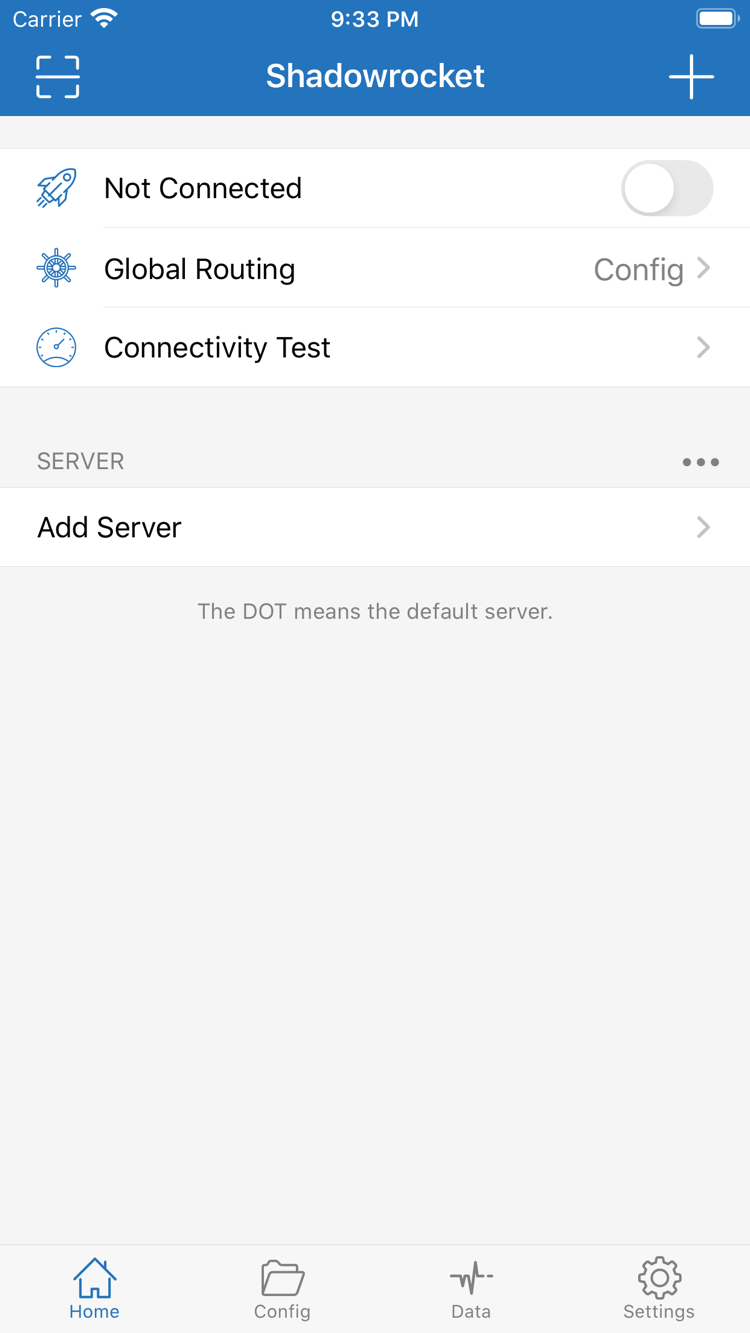
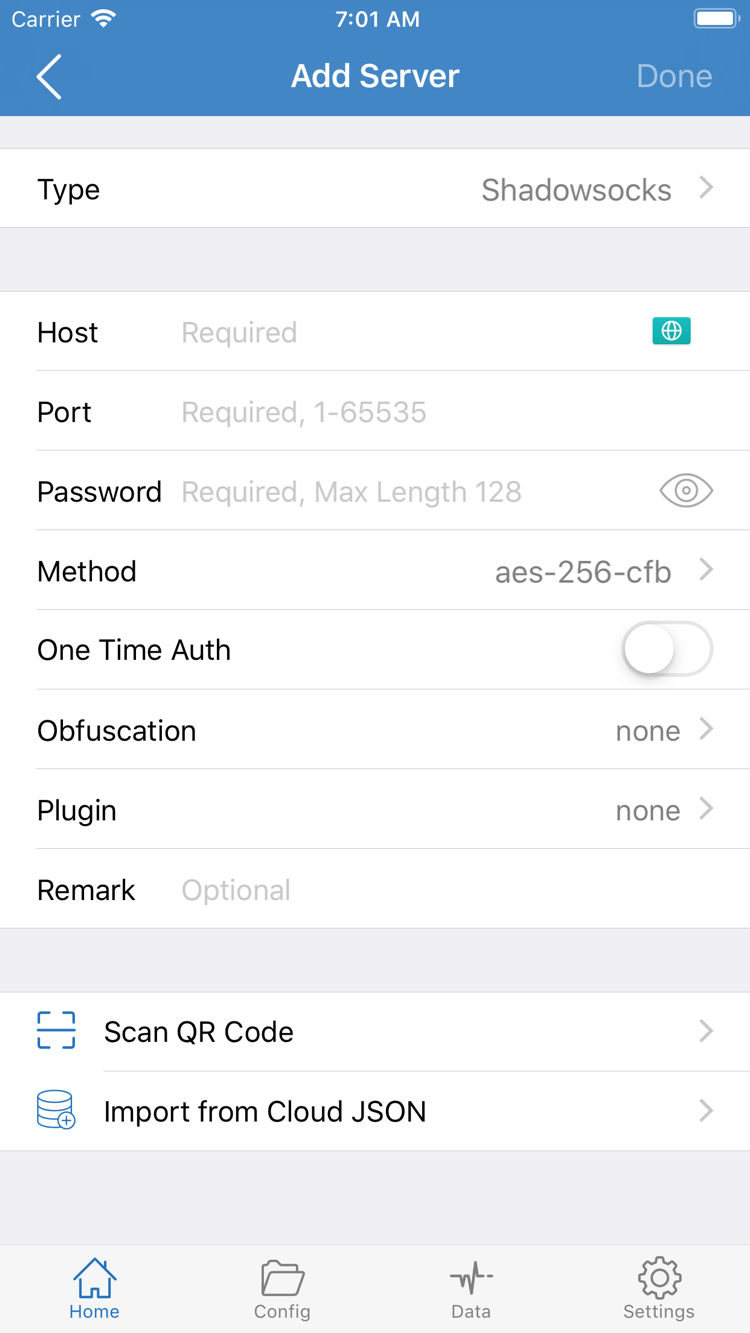
On first launch, Not Connected on Home means no connection is currently active. The contents under SERVER depend on the server details you’ve already imported. The list may look different from the screenshot right after purchase because it contains user-specific data. Enter your own service details under Type, Host, Port, Password, and Method in Add Server; don’t treat the screenshot as a set of ready-to-use connection settings.
The app’s language, system display settings, and interface updates can all change the layout. Screenshots show where to find controls; they aren’t a pixel-by-pixel authenticity check. After verifying the app, continue with the first connection and verification guide. If you already have a subscription, see the Subscribe and server management guide.
Buying and opening Shadowrocket on iPhone
On your iPhone, open the App Store product link on this page, verify the three identifiers, and check the compatibility section. Use the App Store listing for system requirements; don’t rely on an older tutorial screenshot to determine whether your device is currently supported. If the store says you need to update iOS, check your device’s update requirements and follow the instructions in Settings.
Before buying, check the price and the details on the payment confirmation screen. Complete the one-time purchase using a payment method accepted by your current account. After purchase, the App Store downloads the app; open Shadowrocket from your Home Screen. A cloud icon or an Open button may mean the app was previously acquired on this account or is already installed. Check your purchase history and device before assuming you need to pay again.
VPN configuration permission and first connection
Opening the app and starting a connection are separate steps. When you start a connection for the first time or need to add a VPN configuration, iOS may show a permission prompt and ask you to authenticate. This allows the app to create a system network configuration; it isn’t a second purchase screen. Continue only after confirming the request was triggered by Shadowrocket and you’re ready to use your own configuration. Then check the connection status in the app.
Buying and installing the app doesn’t automatically add server details. First import your existing subscription or server information, then check the selected server, Global Routing, and related settings. Connectivity Test can help troubleshoot a connection, but one test alone doesn’t confirm that every website will work. Follow the guide step by step to import and verify your setup.
iPad and compatibility with other devices on the same listing
Using the same purchasing account on iPad
Shadowrocket is available for both iPhone and iPad. If you bought it on your iPhone, sign in with the same Apple ID and find the app under Purchased in the iPad App Store to download it again. Check the App Store listing for system requirements and Universal Purchase eligibility. “Same account” means the store account used for the original purchase; matching device names or sync settings don’t establish that.
The larger iPad screen may change list widths and spacing, but you can still find Home, Config, and Settings by their English labels. In landscape mode, don’t rely on tap positions from an iPhone screenshot. Identify the control by name, then check the relevant setting to avoid mistaking a layout difference for a missing feature.
Purchase history can help restore the app, but check subscriptions, server selection, and current configuration on each device separately. After opening the app on iPad for the first time, check whether your own data is present. If the list is empty, reimport your existing information. A successful connection on iPhone doesn’t mean the iPad has the same connection setup.
Restore purchases after changing devices or reinstalling
When switching to a new iPhone or iPad, or reinstalling Shadowrocket, first make sure you’re signed in to the App Store with the Apple ID used for the original purchase. Go to App Store → Account → Purchased, find Shadowrocket, and download it again at no extra cost. The purchase list may appear under Apps or a similar section in your account; follow the labels shown there.
If a price still appears, check your purchase history
If you expected to have already purchased the app but the product page still shows a price, pause before buying. Check the account used for Media & Purchases, find the app in your purchase history, and make sure you’re viewing the product page for app ID 932747118. A different account, a different product page, or an incomplete original purchase may explain the discrepancy. Seeing an app icon on a device in the past doesn’t prove that the current account has a purchase record.
If you can’t find the app in your Purchased list, check the search filters, purchase history, and messages from the store. Keep your original proof of purchase in case you need it to verify the order through account support. Redownload availability may depend on the app’s current storefront status; check the App Store’s actual message. Changing your region isn’t guaranteed to resolve the issue.
Restore your own data after restoring the app
Your purchase entitlement and in-app configuration are separate. After reinstalling the app, check whether your subscriptions, server details, and Config are still present. Restore each item from your own saved data or backup, then verify the current settings. If you need to import a subscription again, use your own existing, active information. Check the import results and settings rather than assuming it’s ready just because a name appears in the list.
Before moving to a new device, save your own configuration securely. Don’t delete data from the old device until you’ve confirmed the new one works. Shared or exported files may contain sensitive details such as server addresses and authentication credentials; keep backups secure. For Family Sharing, check the App Store listing for its terms and account requirements. Don’t assume a purchase on one account is available to every family member.
Shadowrocket price and one-time purchase
The US storefront lists $2.99 as a one-time purchase; other storefronts show local currency. Check the App Store product page and purchase confirmation for the actual price, currency, and final amount. Shadowrocket is a one-time purchase, with no monthly charge for the app itself. Don’t use an old tutorial’s price to infer the current cost.
Check whether your own service is active separately from whether you’ve purchased the app. For example, if the app opens but a server won’t connect, check its settings, subscription status, and network conditions. If the App Store reports a payment failure, address your store account or payment method. Mixing up these issues can lead you to think you need to buy the app again when a connection fails.
Manage future app updates through the App Store. Check your account’s updates list or the product page for available updates, and save important configuration before updating. The store listing is the source for update history and system requirements. When changing devices, reinstalling, or considering Family Sharing, check your purchase history and eligibility rather than making a new payment decision based only on the reference price on this page.
App Store download FAQs
Why can’t I find Shadowrocket in the App Store?
Shadowrocket isn’t available in the mainland China storefront. App Store availability depends on the country or region of your Apple ID. Check it under Settings → Apple ID → Media & Purchases → View Account → Country/Region. Any eligibility and requirements for changing your region are shown in your account settings.
The product page opens, but the download won’t start. What should I check?
Note the exact App Store message, then check your current store account, purchase status, device compatibility, and available storage. If the message concerns payment or your account, address it in the relevant App Store account settings. If the download is pending, check your network connection and try again.
Do I have to pay again when I get a new iPhone or reinstall the app?
On the App Store, sign in with the Apple ID used for the original purchase, go to Account → Purchased, find Shadowrocket, and download it again at no extra cost. If a price still appears, check the purchasing account and purchase history. After restoring the app, restore your own subscriptions, server details, and configuration separately.
I bought Shadowrocket on iPhone. Can I install it on iPad?
Shadowrocket is available for both iPhone and iPad. Sign in with the Apple ID used for the purchase and redownload it from Purchased in the iPad App Store. Check the App Store listing for system requirements and Universal Purchase eligibility. Review subscriptions and configuration on each device separately.
Can I install Shadowrocket on Mac, Apple TV, or Apple Vision?
The compatibility section of the same App Store listing includes Mac, Apple TV, and Apple Vision. Check the listing on your target device for system requirements, device eligibility, and whether Universal Purchase applies.
The app interface is in English. How do I follow the guide?
This guide uses the English interface labels Home, Add Server, Global Routing, Config, and Settings so you can find the corresponding controls directly. Verify the developer, official icon, and app ID first; interface language and screenshot layout alone don’t establish authenticity.