Shadowrocket Setup Guide
Add an existing service, choose Global Routing, then connect and verify access. Follow the same steps on iPhone and iPad.
Start with a basic working connection, then adjust rules and automatic connection settings. For details on subscription updates, organizing servers, and backups, see the Subscription and Server Management Guide.
Add Server and Subscribe
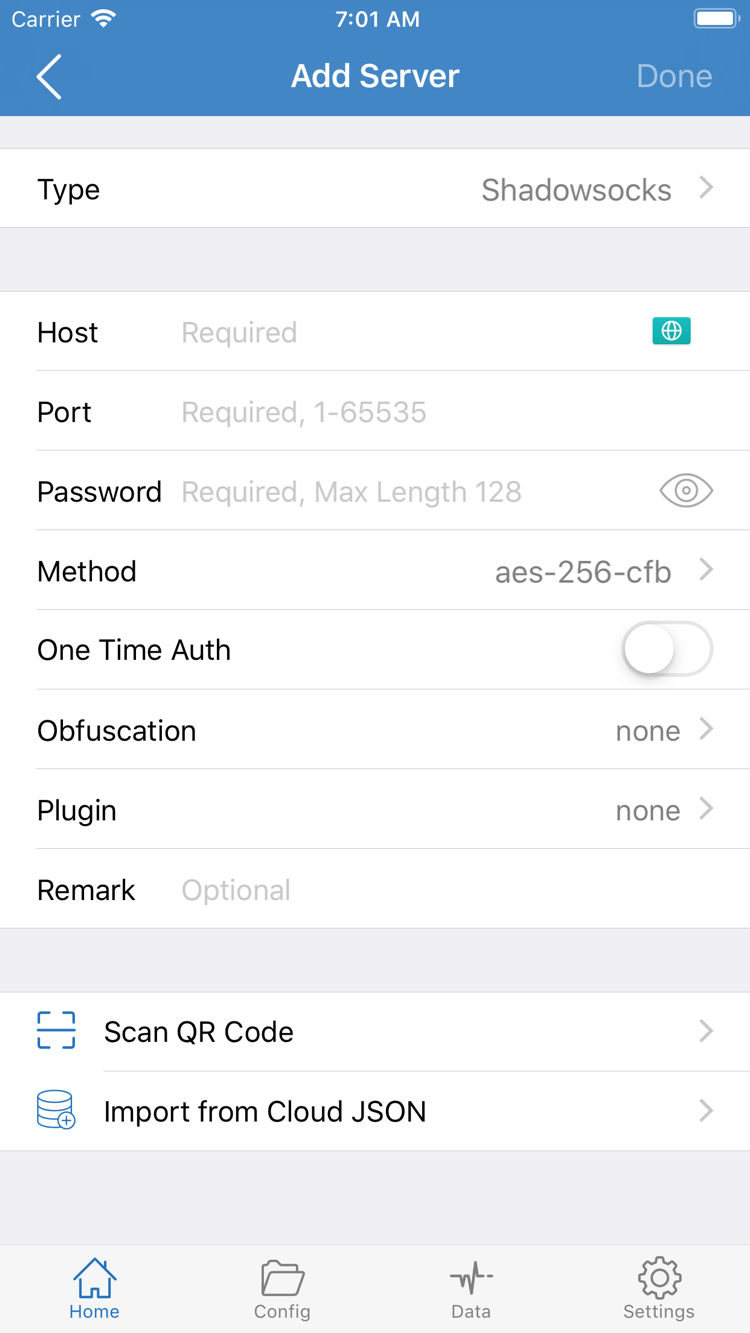
After opening Shadowrocket, stay on Home and leave the connection switch off for now. Check the SERVER group below. If it doesn’t contain your own server entry, tap Add Server. First identify which type of information you have: a subscription link that can update a server list, or the protocol, address, port, and authentication details for an individual server. These use different forms—don’t paste a subscription link into Host.
Have a subscription? Choose Subscribe
In Add Server, open Type and choose Subscribe. Enter your complete subscription link in the URL field. Use the link from your existing service details, keeping the full path and query parameters intact. Line breaks, extra spaces, or nonstandard punctuation copied from a chat or document can cause import errors. You can add a remark to identify the subscription; it won’t change the connection settings.
After saving, return to Home and check for the subscription group and its server entries. If the group appears but contains no entries, first check that the link is complete, then try updating the subscription. A successful import means the app read the server details; it doesn’t guarantee that every server can connect or that the service is still active. Next, select an individual server, not just the group heading.
Have server details? Enter them under the matching Type
For a single server, choose the matching protocol in Type, then fill in each field. For example, common Shadowsocks fields include Host, Port, Password, and Method. Enter the hostname or address in Host and the port in Port. Password and Method must match the original details; don’t substitute values just because their names look similar. Other protocols may have different authentication, transport, or TLS fields. If you’re unsure what a field means, check the Glossary rather than using settings from another protocol.
You can also import existing server details from a QR code or share link. In Add Server, use Scan QR Code to scan your own code. To import from the clipboard, copy the complete share link and follow the prompt shown in the app. After saving, check the Type and address. Import from Cloud JSON is for data in the corresponding format, not a general-purpose subscription link importer. If your data isn’t in that format, use Subscribe or enter the details manually.
On iPad, the content area and list layout may differ from iPhone, but look for Home, SERVER, and Add Server. After importing, confirm three things: the entry appears, its type matches your details, and you can select the entry you need. Avoid adding the same subscription repeatedly; duplicate entries make later checks harder. Once you’ve confirmed one set of details, move on to Global Routing.
The three Global Routing modes
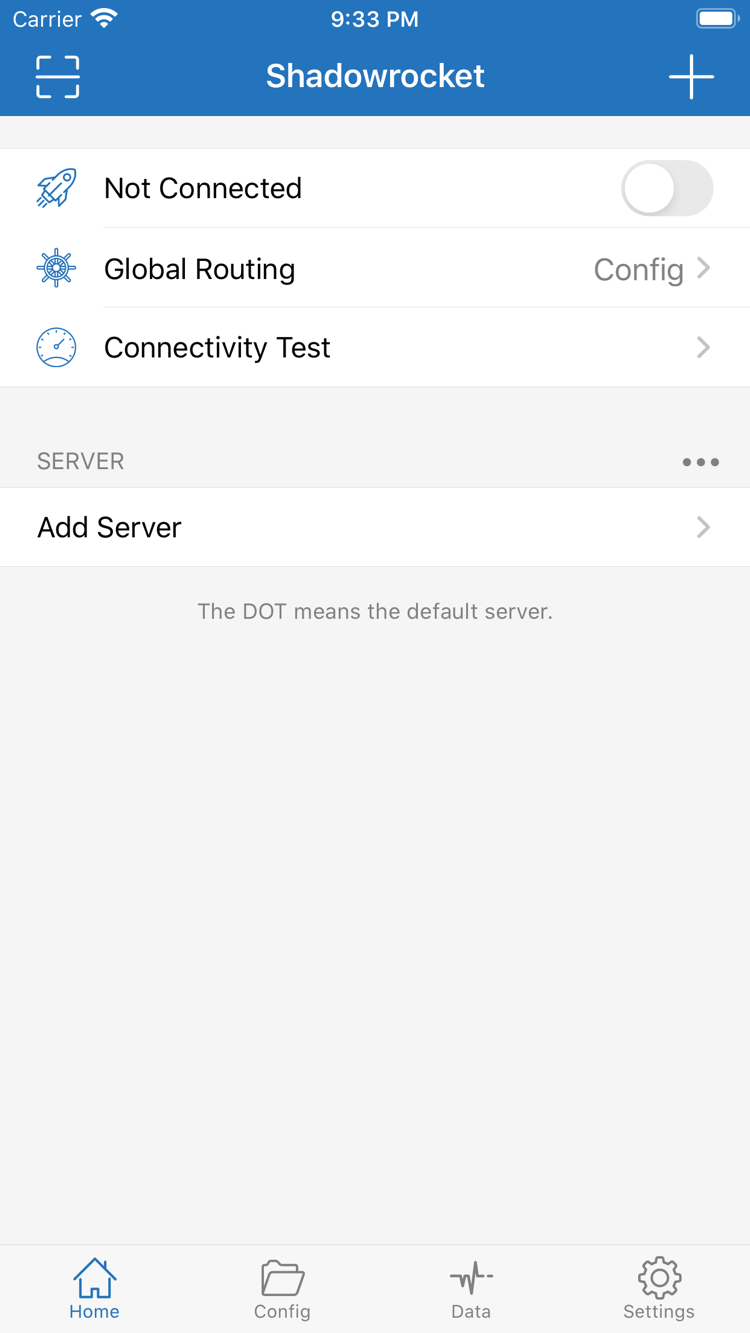
After adding a server, return to Home and open Global Routing. This setting controls how requests are routed; it’s separate from the server selected under SERVER. Note the current mode before you begin so you don’t change both the server and routing mode during troubleshooting and lose track of what affected the result.
Config: Route requests according to a configuration file
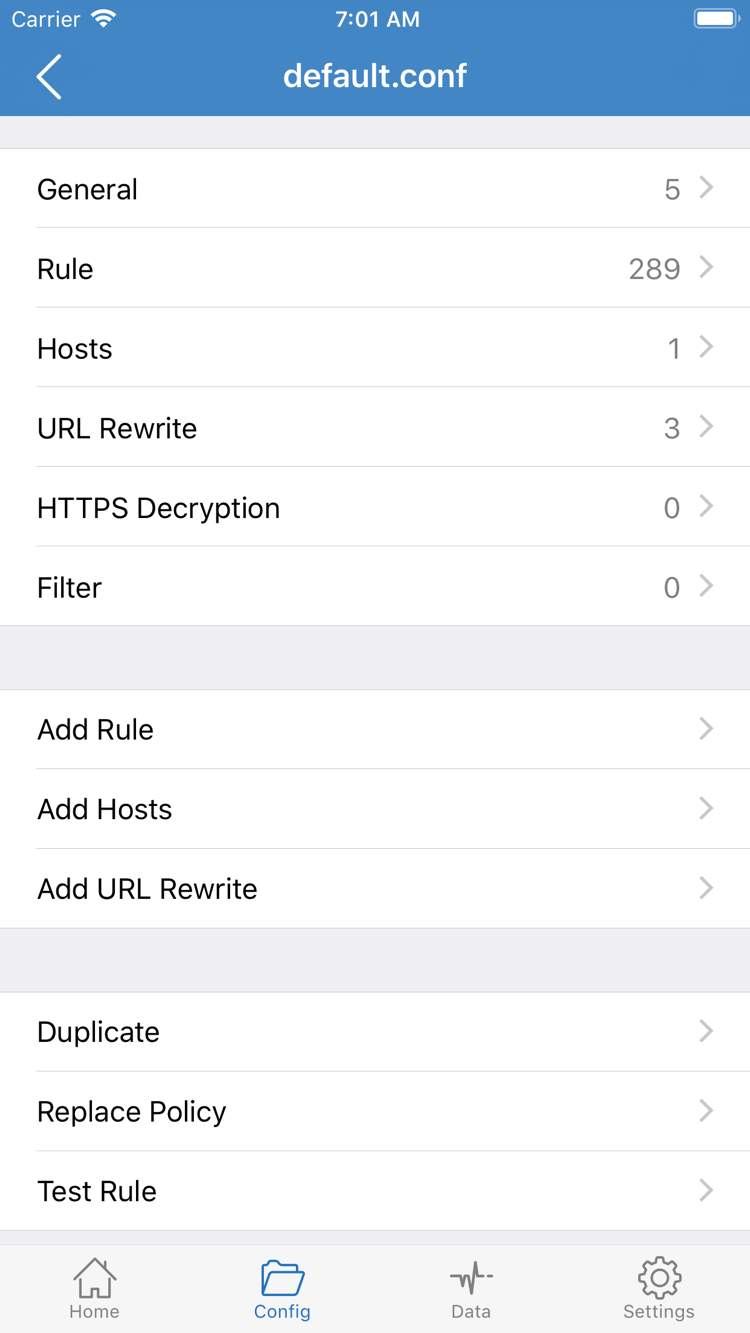
With Config selected, requests are handled according to the active configuration file and its rules. Open Config and confirm which file is active, then check sections such as Rule. Importing a file into the Config list doesn’t make it the active configuration; verify its selected status in the app. If you already have a configuration you trust, use it for now. There’s no need to add complex rules before your first connection.
Rules typically combine a match condition with an action. PROXY routes a request through the applicable proxy policy, DIRECT connects to the destination directly, and REJECT blocks matching requests. A rule may also refer to a named policy, so check the configuration file for context. Rules are evaluated in order, so an earlier match may determine the result. FINAL handles requests that didn’t match earlier rules, and its action also affects the route. Understanding this helps explain why some traffic may go direct even while the connection is on.
Proxy and Direct
Proxy routes requests through a proxy. It can help distinguish server connectivity problems from rule issues, but it doesn’t guarantee access to every destination. Direct uses a direct connection. If a destination requires a proxy route, it won’t open in Direct; that alone doesn’t mean the server details are wrong. When troubleshooting is done, restore the mode that suits your normal use.
For your first test, choose one mode and use the same destination throughout. If you have a configuration you trust and want to follow its rules, choose Config. To temporarily rule out rule-related issues, note the original setting and compare using Proxy. Don’t keep a mode that doesn’t suit your needs just because one latency test succeeded, and remember that these are routing modes, not different servers.
The screenshot on the right shows General, Rule, Hosts, URL Rewrite, and HTTPS Decryption in the Config editor. You don’t need to edit these sections or change HTTPS Decryption to make your first connection. Just confirm that the active configuration matches your expectations. For details on rule keywords and matching conditions, see Rule and Interface Glossary. For file management, see the Subscription Guide.
Select a server and connect from Home
Once you’ve confirmed the routing mode, return to Home and select the server you want under SERVER. Check the selection indicator beside the entry, then confirm that Global Routing is still set to the mode you chose. If your subscription has multiple entries, start with one whose details are clear and that’s still available. Don’t switch servers each time you refresh a browser page, or the results won’t be comparable.
Next, turn on the connection switch at the top of Home. When disconnected, you may see a status such as Not Connected. After switching it on, watch for a status change instead of judging success by the switch position alone. The first time you connect, iOS may ask for permission to add a VPN configuration. Review the prompt and approve it as required, using device authentication if needed. This permission lets Shadowrocket create a system network connection; it doesn’t import a subscription or fill in server details.
After confirming the system prompt, return to Shadowrocket and wait for the connection status to update. If you previously declined authorization, try connecting again and respond to the prompt. Don’t rapidly toggle the switch repeatedly. First check that you’ve handled any prompts and that the status is stable. If another VPN configuration is active on your device, confirm which one is actually in use so you don’t mistake its status for this connection.
Check connection status and access separately
Turning on the connection switch means the app is establishing or has established a connection; it doesn’t prove that a destination, DNS, or every type of traffic is working. Continue with the next verification step instead of changing a lot of Settings right away. In Config mode, some requests may be routed DIRECT according to the rules. That’s expected behavior, not necessarily a failed connection.
Before switching to your browser, note the selected server and Global Routing mode. When you return to Home, if the connection has dropped, check for an error message. If the status still shows connected but a webpage won’t open, treat it as a connected-but-can’t-access issue and follow Step 05. These situations require different checks; identifying which one you have avoids re-entering server details unnecessarily.
Use a manual connection for this test and leave On Demand disabled for now. After manual connection works, you can configure automatic connection conditions. This makes it easier to tell system-trigger issues from server issues. When testing is complete and you don’t need the connection, turn it off on Home. If you’ve enabled On Demand later, check whether its settings may reconnect automatically.
Connectivity Test and access checks
Keep the server and Global Routing mode unchanged. First, run Connectivity Test on Home and check the result for the selected entry. This test provides a clue about connectivity; it doesn’t certify that all websites are accessible. Different Test Method options use different ways to test. A result from one method only shows that its specific test conditions received a response; it doesn’t prove that all DNS lookups, authentication, and real-world access are working.
Next, open a browser and visit a page you normally use that has clear, predictable content. Confirm that it loads fully, including its text and essential resources. Then visit the destination you want to test. Checking a familiar page first helps distinguish a general network issue from a problem with one destination. If the page was already open, reload it and check that you aren’t just seeing cached content. An old page still on screen doesn’t mean a new request has succeeded.
To check routing, review the matching rule under Config. A destination expected to use DIRECT should match a direct rule; a destination expected to use PROXY is the right one to test the proxy route. A request matched by REJECT is blocked by design. If request logs are available, compare the destination domain with the matching rule and action. Don’t judge by the server name or a single test result. An IP-check page only shows the route used for that request, not for every app or connection.
If results don’t match, note exactly what happened before changing anything. For example, “Connectivity Test returns a result, but the browser reports a DNS lookup failure” points to a resolution or destination-access issue. If the switch turns off immediately, start by checking authorization, server details, and system connection status. A clear description is more useful than repeatedly updating the subscription and helps you choose the right troubleshooting steps.
For comparison tests, change one condition at a time. Keep the destination the same and try another existing server, or keep the server and compare Proxy with Config temporarily. Make a new request after each change and record the difference. If you change the server, DNS, rules, and test method all at once, it’s hard to know what actually fixed the issue. After verification, restore your usual configuration and keep the settings you confirmed work.
Common issues and what to check
When something goes wrong, start with the simplest checks: device network, imported details, current selection, connection status, and destination access. Don’t delete all your configurations right away. If you have a working backup, keep it. If not, at least record your current settings and the exact error before making small, reversible changes.
No entries under SERVER after import
Confirm you used Subscribe and check that the URL is complete. A subscription link is different from a management page URL; opening a management page in a browser doesn’t mean it can be imported. If an update returns an error, note the error type and check your service status and link validity. Don’t keep creating groups with the same name. For manual setup, return to Add Server and confirm you saved the entry, especially if any required fields are blank.
The connection switch won’t stay on
First, confirm that you approved the system VPN configuration prompt. Then check the selected server’s Type, Host, Port, and authentication fields. Passwords are case-sensitive, the port must match your details, and required protocol fields can’t be omitted. Next, check that the device’s current network works. You can temporarily disconnect and use a familiar page to confirm basic access, then return to Shadowrocket. When comparing networks, leave the other settings unchanged.
Test returns a result, but webpages won’t open
First identify whether the browser reports a DNS lookup failure, connection timeout, certificate issue, or an error returned by the website itself. Then check Global Routing. If Config fails but Proxy works, focus on the active Config’s Rule, policy references, and FINAL. If both modes fail, continue checking the server and resolution-related settings. Don’t attribute every error to DNS, and don’t rule out server-side connectivity just because one test succeeded.
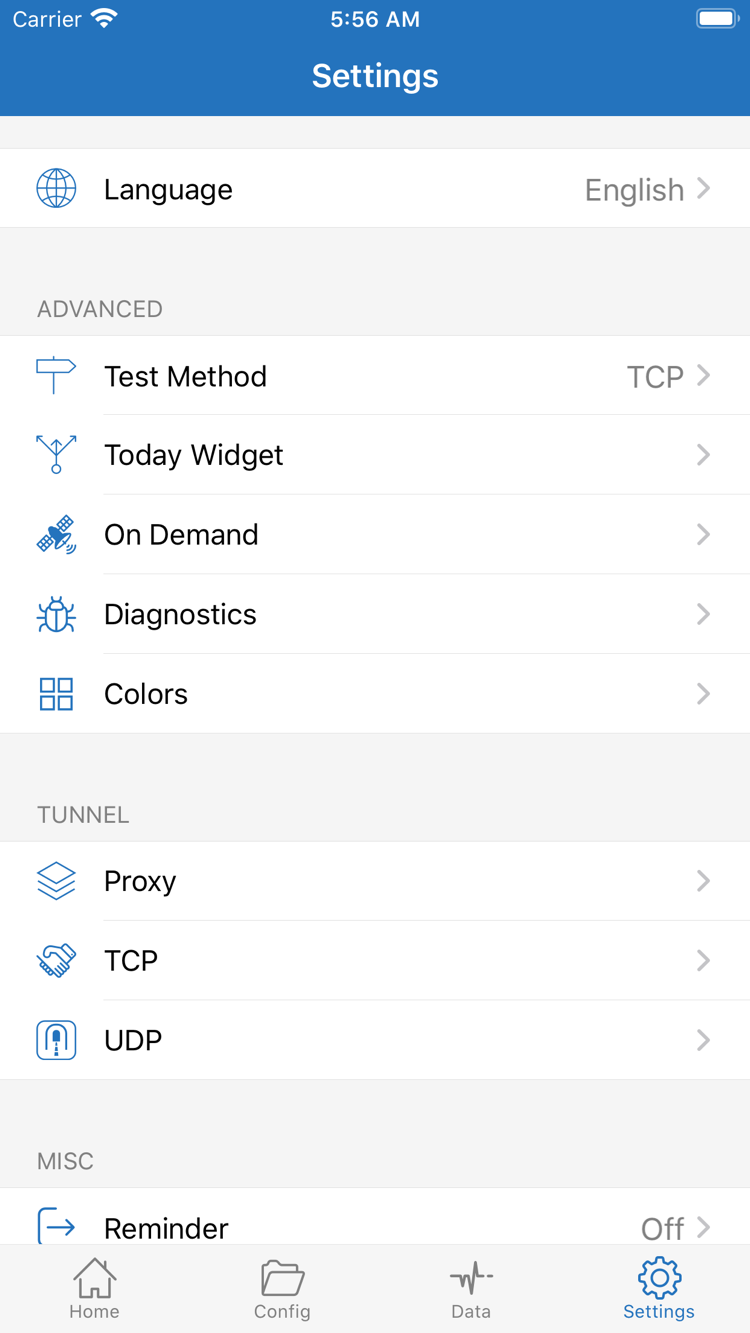
In Settings, look for Test Method and Diagnostics. Test Method lets you check which test method is being used; Diagnostics provides access to further diagnostic information. Available options depend on what the app displays. Record the network, selected entry, routing mode, and error so you can compare results. DNS depends on the configuration’s resolution path and network conditions, so understand the current settings before changing them. For definitions, see the DNS and Networking Glossary.
Only some destinations fail, or the connection keeps coming back
If only one destination fails, check whether its domain matches REJECT or an unsuitable DIRECT rule, and whether the page loads resources from other domains. Don’t delete all your rules to fix one page. To investigate further, review the actual matching order in Config and see How Modes and Rule-Based Routing Work for what each action does.
If the connection comes back after you manually turn it off, check On Demand and its triggers in Settings. Automatic connection controls when a connection starts; it doesn’t guarantee that a server is reachable. Temporarily pause the relevant triggers, test manually, then restore them one at a time. Don’t confuse “automatically reconnects” with “verified to work.” Migration, subscription updates, and bulk deletion aren’t needed for a first connection. Before making those changes, read the organization and backup guidance in the Subscription and Server Management Guide.
After connecting once using this guide, everyday use comes down to checking the selected entry, Global Routing, and connection status. When adding rules or enabling On Demand, follow the same approach: make a small change, verify it in practice, and keep settings you can restore. You don’t need to reimport everything each time.